

You can connect a Google Sheets spreadsheet to an Atlist map to automatically import new markers in real-time.
Your spreadsheet must include at least one of the following:
You can also include optional columns:
Tip: Use this ChatGPT prompt to quickly format your spreadsheet correctly.
Download: Example spreadsheet
Atlist automatically updates from your Google Sheet at a frequency you choose:

You can also manually refresh the data anytime by clicking the Fetch New Data button:

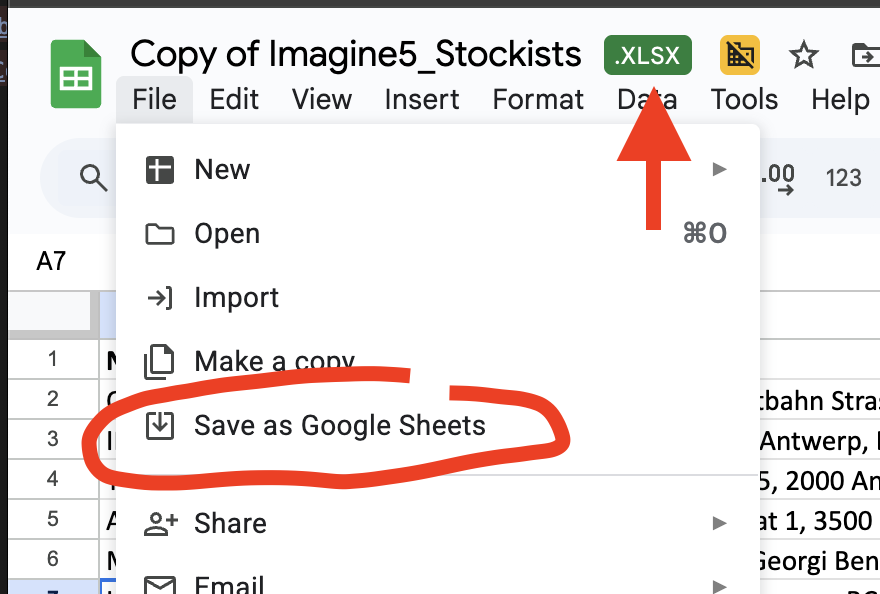
If you upload an Excel file to Google Sheets, be sure to convert it by clicking Save as Google Sheets. Atlist can only sync with Google Sheets, not Excel files. (See below)
When your map is synced to a Google Sheet, some features are disabled:
To make changes, update the Google Sheet instead.
You can still apply custom marker styles and add photos while using a synced Google Sheet.
However, Atlist matches markers based on their Name and Address. If either changes in your Google Sheet, any associated custom styles or photos will be lost.
Syncing a Google Sheet will erase any existing markers on your map. Be sure to start with a blank map or save any important markers beforehand.
Was this helpful? Send feedback.